Getting Started | Quick Updates for monday.com
Quick Updates is a monday.com app that lets you create reusable text templates for the Updates section. This guide walks you through installation and your first update.
Install the App
Section titled “Install the App”- Open the monday.com Marketplace
- Search for Quick Updates
- Click Install, select All Workspaces, and grant the requested permissions
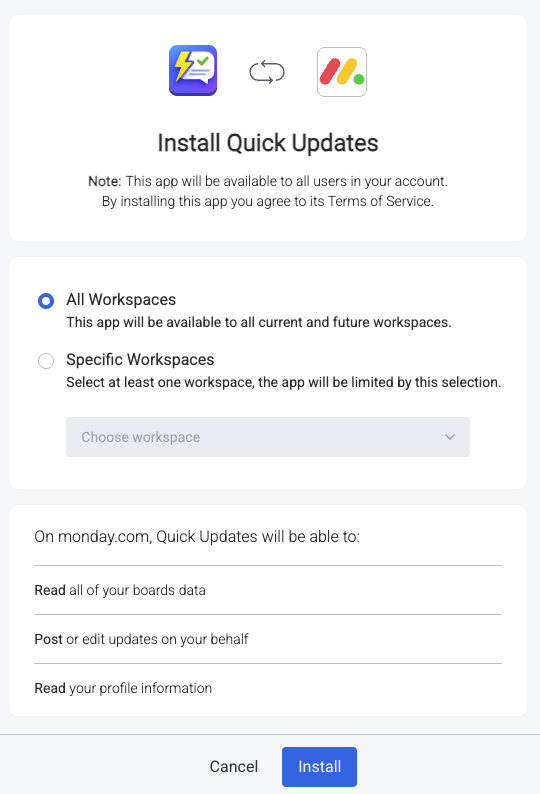
- The app is now available on all your boards
Add Quick Updates to a Board
Section titled “Add Quick Updates to a Board”Quick Updates works as an Item View (for single items) and a Board Action (for bulk operations).
Item View
Section titled “Item View”- Open any item on your board
- Click the + button next to the item view tabs (Updates, Files, Activity Log)
- Click Explore more views
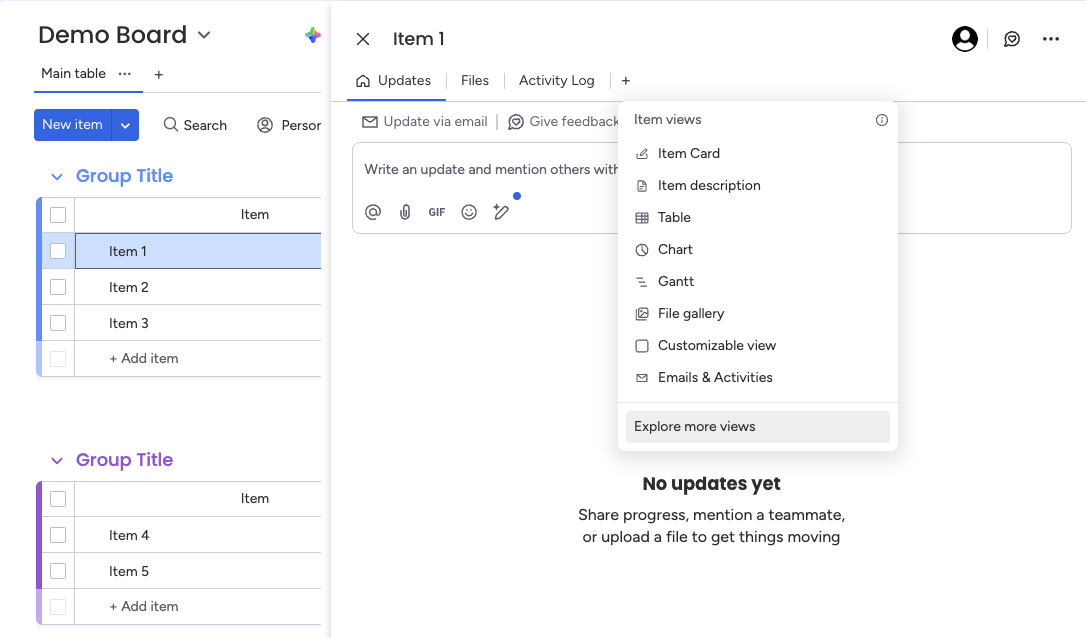
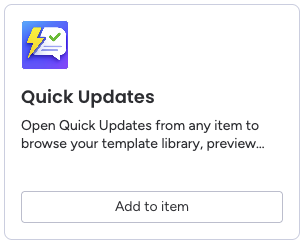
- Find the Quick Updates card and click Add to item
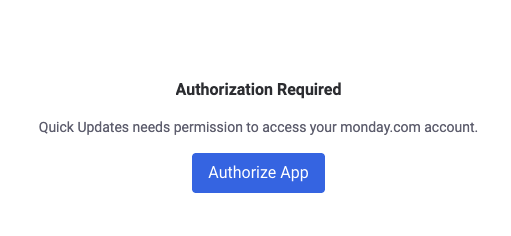
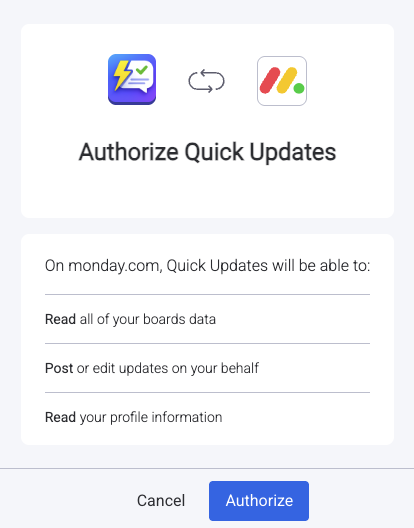
- On first use, click Authorize App and grant the requested permissions
Board Action (Bulk)
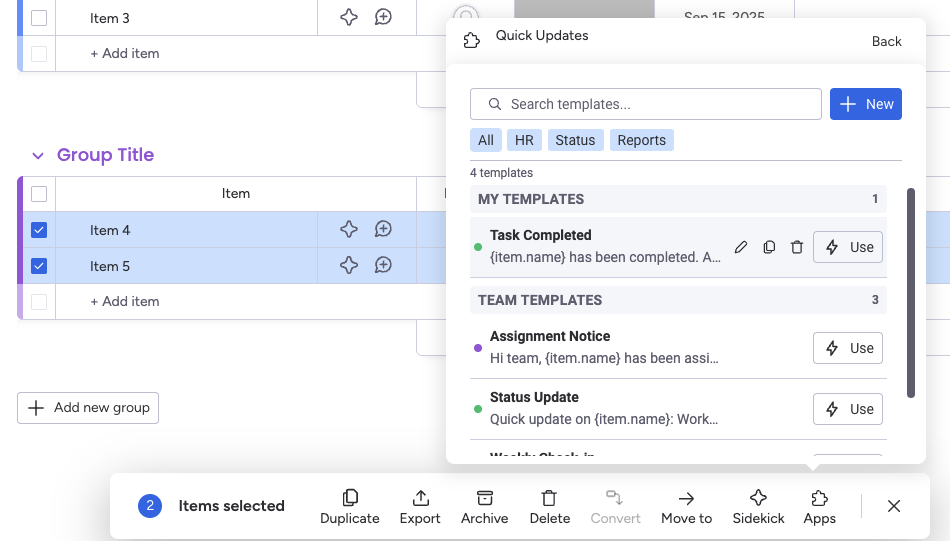
Section titled “Board Action (Bulk)”- Select multiple items using the checkboxes on your board
- In the bottom action bar, click Apps
- Select Quick Updates
Create Your First Template
Section titled “Create Your First Template”- Open Quick Updates from any item view
- Click New Template
- Enter a name (e.g., “Weekly Status Update”)
- Write your template body. You can use rich text and variables:
Hi team,
**{item.name}** status update for {today}:
Current status looks good. Assigned to {me.name}.
Let me know if you have questions!- Click Create Template

Apply Your Template
Section titled “Apply Your Template”- Navigate to any item and open Quick Updates
- Find your template in the picker
- Click on it to see a live preview with variables resolved
- Click Apply to post the update

The update is posted to the item’s Updates section, visible to everyone on the board.
Next Steps
Section titled “Next Steps”- Creating Templates — Learn about the editor, categories, and team sharing
- Using Variables — All available variable types and syntax
- Bulk Operations — Apply templates to multiple items at once
- Automation Action — Use templates in workflow automations