Bulk Operations | Quick Updates for monday.com
Bulk operations let you apply a template to many items simultaneously. Each item gets its own personalized update with variables resolved individually.
How to Use Bulk Mode
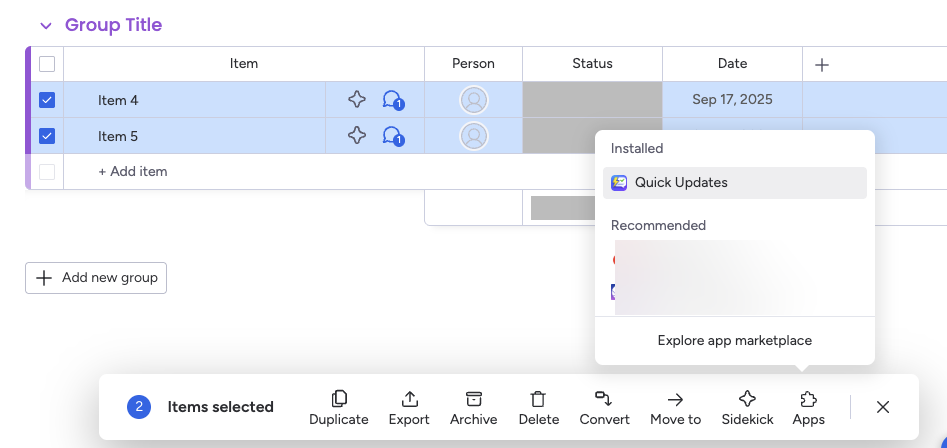
Section titled “How to Use Bulk Mode”- On your board, select multiple items using the checkboxes
- In the bottom action bar, click Apps → Quick Updates
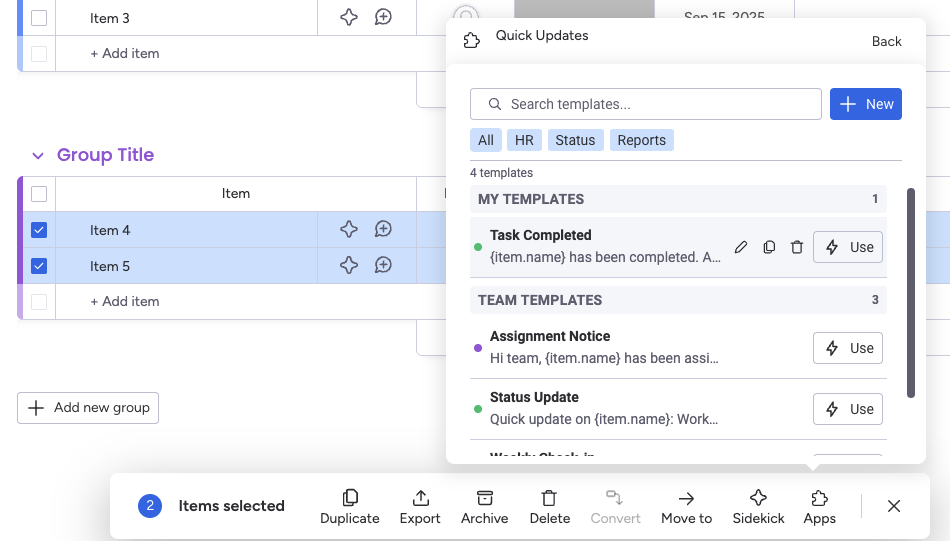
- Choose a template from the picker
- Review the confirmation dialog
- Click Apply to All
Confirmation Dialog
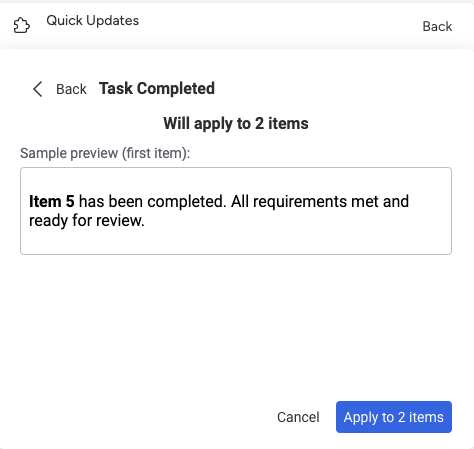
Section titled “Confirmation Dialog”Before processing, you’ll see a confirmation that shows:
- Template name — Which template will be applied
- Item count — How many items will receive the update
- Sample preview — The resolved template for the first item, so you can verify it looks correct
Click Apply to N items to start the operation, or Cancel to go back.
Progress Tracking
Section titled “Progress Tracking”Once you confirm, the operation runs in two phases:
Phase 1: Preparing
Section titled “Phase 1: Preparing”Quick Updates fetches data for all selected items (names, column values, etc.) and resolves variables for each one individually.
Phase 2: Sending
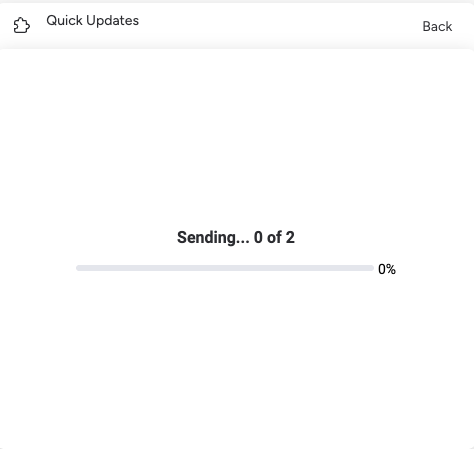
Section titled “Phase 2: Sending”Updates are posted in batches. You’ll see a progress bar with the count and percentage:
Results Summary
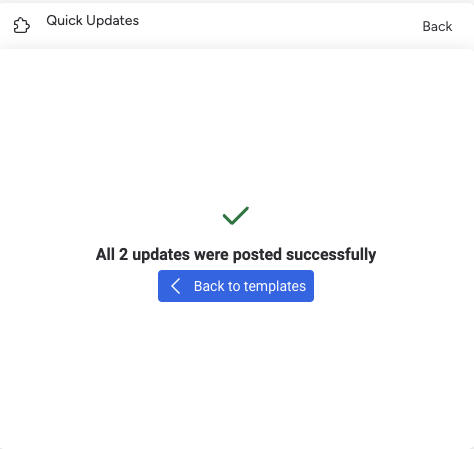
Section titled “Results Summary”When the operation completes, you see a success confirmation with the total count of posted updates. Click Back to templates to return to the template picker.
Error Handling
Section titled “Error Handling”Individual item failures don’t stop the entire operation. Common failure reasons:
| Reason | What to do |
|---|---|
| Rate limit reached | Click Retry — it picks up where it left off |
| Item deleted during operation | No action needed — skip it |
| Permission denied | Check your board permissions for those items |
The Retry Failed button reuses already-resolved template data, so retrying is fast — it only re-sends the updates, it doesn’t re-fetch item data.
Tips for Bulk Operations
Section titled “Tips for Bulk Operations”- Test with a small selection first — Select 2-3 items to verify the template looks right before running a large batch.
- Use variables — Bulk mode is most powerful when templates include variables. Each item gets personalized content.
- Check the sample preview — The confirmation dialog shows one resolved example. Make sure it looks right.
- Off-peak hours — For very large batches (500+), consider running during lower-traffic times.